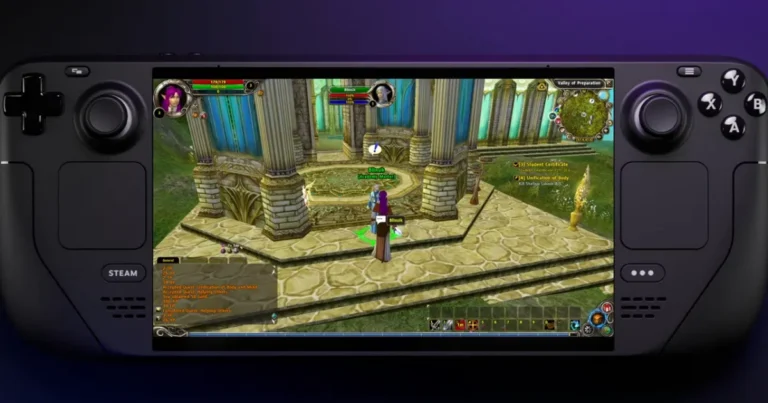
How to Run Runes of Magic on Linux – Complete Setup
Runes of Magic was designed for Windows, but Linux users have several ways to run the game through compatibility software. Wine provides the Windows compatibility layer, while Lutris gives users an easier way to manage Wine versions, game prefixes, launch settings, and game files.
The experience is not exactly the same on every Linux distribution. Ubuntu, Linux Mint, Arch Linux, Fedora, and other systems use different graphics drivers and system packages. Hardware also plays a role, especially when the game is running through Vulkan or another graphics translation layer.
This guide focuses on Linux compatibility, configuration, graphics, performance, and common problems rather than the installation process.
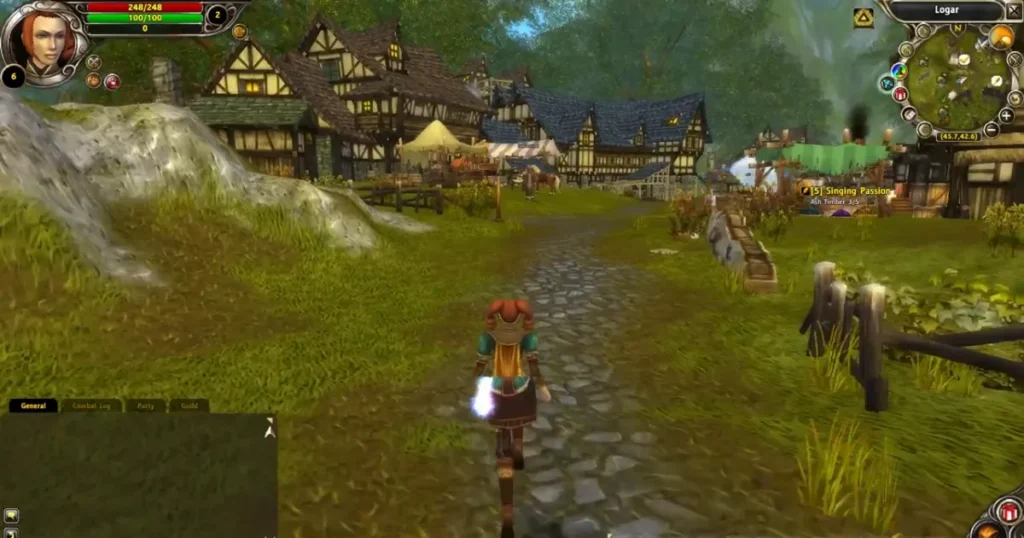
What You Need for Linux Compatibility
Before troubleshooting the game, check the basic system environment.
You should have:
- A supported Linux distribution
- Working graphics drivers
- Wine or another Windows compatibility layer
- Lutris if you want easier configuration
- A supported game client
- Enough free storage for the game and its updates
The original PC version has modest hardware requirements, but running a Windows game through a compatibility layer adds another part to the setup. A properly working graphics driver is therefore important even when the computer itself has enough processing power.
Wine and Lutris
Wine is the main compatibility layer used to run Windows applications on Linux. It provides the Windows environment required by the game client without installing a complete Windows operating system.
Lutris works as a management tool around Wine and other runners. It gives you a graphical interface for selecting runners, managing prefixes, changing launch options, and checking game logs.
You do not have to use Lutris, but it makes configuration easier, especially when you need to test different Wine versions.
Keep a Separate Wine Prefix
A Wine prefix is a separate Windows-style environment used by Wine.
For this game, keeping a dedicated prefix is a good practice. It prevents settings and Windows components from other applications from interfering with the game.
A separate prefix also makes troubleshooting easier. If a configuration change causes a problem, you only need to work on the game’s environment rather than affecting other Windows applications running through Wine.
Avoid copying configuration server files or DLLs from unrelated Wine installations. Different applications often require different settings.
Check Graphics Drivers
Graphics drivers are one of the first things to check when a Windows game behaves incorrectly on Linux.
NVIDIA users should use the driver recommended for their particular Linux distribution and GPU. AMD and Intel users should also make sure their Mesa and Vulkan components are working correctly.
A graphics driver problem can appear as:
- Black screen
- Missing textures
- Very low frame rates
- Game crashes
- Flickering graphics
- Incorrect window rendering
Before changing Wine settings, make sure other Vulkan-based applications work normally. If the graphics stack itself is not working, changing the game configuration will not solve the underlying problem.
DXVK and Direct3D
DXVK is commonly used with Wine to translate Direct3D calls to Vulkan.
It is useful for many Windows games on Linux, but the correct configuration depends on the game client, Wine version, graphics driver, and hardware.
If the game already works, there is no reason to keep changing DXVK settings.
When graphics problems appear, test one change at a time. Avoid installing multiple DirectX packages or manually replacing DLL files without knowing which component is causing the problem.
Older Linux guides often recommend specific Wine or DXVK versions. Those settings were made for particular game and system versions, so they should not automatically be treated as the best configuration for a current Linux desktop.
Fullscreen and Windowed Mode
Display mode can affect how an older Windows game behaves through Wine.
If full screen mode causes a black screen, incorrect scaling, or mouse problems, try windowed mode.
You can also test different resolutions to find a setting that works properly with your desktop environment.
For older games, a lower resolution does not always improve the overall experience if the problem is related to rendering or window management. Test the display mode first before changing several graphics options.
Improving Performance
If the game runs but performance is inconsistent, check the system before lowering every graphics option.
Look at:
- GPU usage
- CPU usage
- Resolution
- Graphics effects
- Background applications
- Wine runner
- Vulkan driver
- Desktop compositor
Start by reducing demanding settings such as shadows or visual effects. Keep other settings unchanged so you can see whether the adjustment actually helped.
If performance becomes worse after changing Wine or DXVK, return to the previous configuration and test again.
Common Linux Problems and Fixes
Game Does Not Start
First check the Wine runner and dedicated prefix. Then review the game log for the first error that appears.
Do not immediately replace game files. A missing dependency, incorrect Wine setting, or graphics problem could be responsible.
Black Screen
Try windowed mode first and restart the game.
If the problem continues, check the graphics driver and Vulkan support. You can then test another Wine runner to see whether the issue is specific to the current compatibility environment.
Mouse Flickering
Mouse flickering has been reported in Linux compatibility setups for the game.
Try windowed mode and check whether the problem changes. If you are using Lutris, test another Wine configuration before making other changes.
Launcher Opens but the Game Does Not
If the launcher works but the actual game does not start, the two programs may have different compatibility requirements.
Check the game executable, Wine prefix, graphics configuration, and logs. If the problem started after a launcher update, the new launcher version could also be involved.
Poor Performance
Check the graphics driver first. Then test resolution, graphics effects, Wine runner, and background applications.
Do not run the game through several compatibility layers at the same time. An unnecessary extra layer can create more problems instead of improving performance.
Game Stops Working After a Configuration Change
Undo the most recent change first.
This is one of the easiest troubleshooting methods because it tells you whether the new setting caused the problem. If several settings were changed together, return to the previous working configuration and test each change separately.
Using Lutris for Troubleshooting
Lutris is particularly useful when you need to compare different Wine runners or inspect launch information.
Open the game’s configuration and review the selected runner, environment variables, launch options, and prefix location.
If the game works with one runner but not another, keep the working configuration rather than changing it simply because a newer version is available.
Logs are also useful when the game closes without showing a clear message. Look for errors related to files, graphics, libraries, or processes.
Linux Distribution Differences
There is no single Linux configuration that works identically everywhere.
Ubuntu and Linux Mint often use different package versions from Arch Linux, while Fedora has its own driver and package setup. The same Wine configuration might therefore behave differently between distributions.
For this reason, troubleshoot the actual system instead of blindly copying commands from an old tutorial.
The important parts are the same: working graphics drivers, a suitable Wine environment, compatible game files, and a stable configuration.
Final Thoughts
Running the Windows version on Linux depends on more than Wine alone. The graphics driver, Wine runner, game client, prefix, display mode, and system environment all affect compatibility.
The best approach is to keep the setup simple and make one change at a time. If the game already works, avoid unnecessary modifications. When a problem appears, start with the graphics driver, Wine configuration, logs, and display settings before replacing files.
This makes it easier to identify the actual cause and keep a stable Linux gaming setup.