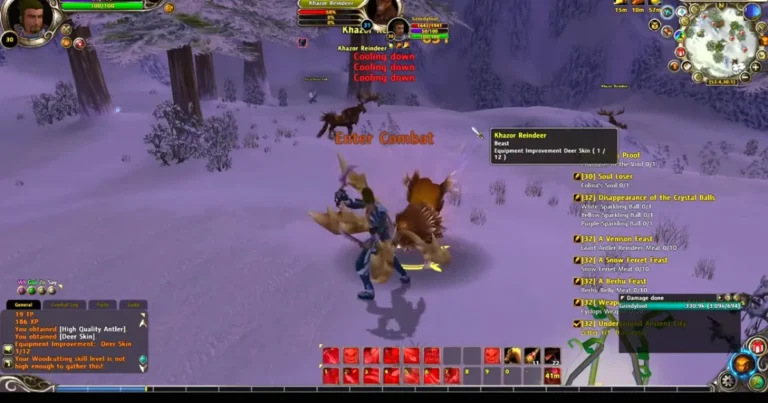
Runes of Magic on Steam Deck – Setup & Compatibility Guide
Runes of Magic was originally released for Windows, but Steam Deck users have another option because the game is available through Steam. The Steam Deck runs SteamOS, so Windows games use Proton or another compatibility layer rather than running as native Linux applications.
The basic setup is simple: install the game through Steam, let Steam handle the required Proton files, launch the game, and then adjust the controls and graphics for the Deck’s smaller screen. If the normal Steam setup does not work correctly, Desktop Mode and tools such as Lutris provide additional options.
This guide explains the setup step by step and covers the most common compatibility and performance problems.
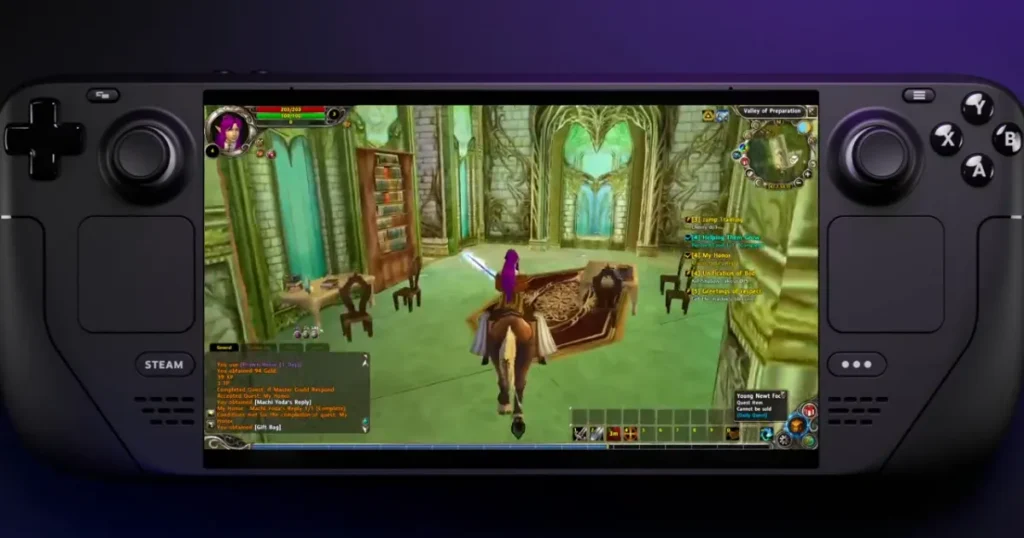
Can Runes of Magic Run on Steam Deck?
Yes. The game is available through Steam, and the official Runes of Magic forum provides Steam installation instructions. Community Linux testing has also reported the game working with Steam Proton, although results can vary between different Proton versions and game configurations.
The game was not originally designed specifically for Steam Deck, so some settings need to be adjusted for the controls, screen resolution, and SteamOS environment.
Update Your Steam Deck
Before installing the game, update SteamOS.
Open:
Steam → Settings → System
Check for available system updates and install them. Restart the Deck after the update if Steam asks you to do so.
This gives you a cleaner starting point and reduces the chance of running into an old SteamOS or Proton issue during the installation.
Install the Game Through Steam
The easiest method is to use the Steam version.
Open the Steam Store and search for Runes of Magic. The official forum confirms that the game can be downloaded through Steam and that a separate Steam account is required.
After opening the game page:
- Add the game to your Steam library.
- Start the installation.
- Select the internal storage or your preferred microSD card.
- Wait for the download to finish.
- Allow Steam to complete any additional updates.
Do not change Proton settings immediately. First try the default configuration and see whether the game starts.
Start the Game in Gaming Mode
Once installation is finished, return to Gaming Mode and open the game from your library.
The first launch might take longer than normal because Steam needs to prepare the compatibility environment.
If the launcher appears, allow it to finish any required updates before changing graphics settings.
The official game instructions state that the Steam client handles downloading and patching the game.
Test Proton Settings
Steam uses Proton to run Windows games on SteamOS.
If the default Proton version does not start the game correctly, try another Proton version from the game’s properties.
Open:
Game → Properties → Compatibility
Enable the option to force a specific compatibility tool, then test an available Proton version.
Change only one version at a time. If one version works, keep it rather than changing several settings together.
Older community testing reported Runes of Magic working with Steam Proton, while earlier Linux setups sometimes needed Wine or Lutris instead.
Set Up the Controls
The original game was designed around a keyboard and mouse, so the Steam Deck controls need some adjustment.
Start with the default controller layout and test basic actions:
- Character movement
- Camera movement
- Target selection
- Skills
- Inventory
- Menus
- Chat
- Map
For MMORPG controls, the trackpad is particularly useful for mouse-based menus.
You can also open the Steam controller configuration and assign keyboard or mouse actions to the Deck’s buttons.
Keep the first layout simple. Once you know which controls are missing, add extra shortcuts for skills, inventory, map, or other frequently used actions.
Adjust the Screen Resolution
The Steam Deck has a smaller display than a typical desktop monitor, so the default PC settings might not be ideal.
Start with the game’s native Deck resolution or a lower resolution if performance becomes inconsistent.
Then adjust:
- Texture quality
- Shadow quality
- View distance
- Effects
- Anti-aliasing
- Fullscreen or window mode
There is no need to lower every setting immediately. Start with moderate graphics settings and reduce individual options if the game struggles.
Configure Performance
Run the game for a few minutes before deciding which settings need changing.
Pay attention to:
- Frame-rate drops
- Stuttering
- Fan noise
- Battery drain
- Long loading times
- Input delay
Older PC games often use fewer modern graphics features than newer titles, so lowering every graphics option is not always necessary.
If performance is stable, keep the settings as they are. If the frame rate drops in busy areas, reduce effects, shadows, or view distance first.
Use Desktop Mode for Advanced Setup
Most users should start with Gaming Mode. Desktop Mode is useful when you need additional software or want to inspect files.
Press the Steam button and select the option to switch to Desktop Mode.
From there, you can access the Discover store and install Lutris. The current Lutris documentation specifically lists Steam Deck installation through Desktop Mode and the Discover store.
Lutris is useful when you need a different Wine configuration or want to manage a non-Steam installation.
After installing a game through Lutris, you can also create a Steam shortcut so it appears in the normal Steam interface.
Fix Common Launch Problems
The Game Does Not Start
First restart the Steam Deck and try the default Proton configuration again.
If it still fails, open the game’s Compatibility settings and test another Proton version.
Black Screen
A black screen can be related to the compatibility layer or display mode.
Try:
- Restarting the game.
- Testing another Proton version.
- Switching between fullscreen and windowed mode.
- Checking the game files through Steam.
Community Linux reports have also mentioned cases where the game window did not render correctly and restarting the client fixed the problem.
Mouse Problems
Mouse flickering has been reported in Linux compatibility setups for this game. Lutris also notes mouse-related issues in its current game entry and suggests windowed mode when the mouse becomes invisible.
On Steam Deck, changing the controller layout or using the trackpad as a mouse is also worth testing.
Game Crashes
If the game crashes repeatedly, avoid changing several settings at once.
Check the Proton version first. Then verify the game files through Steam and restart the Deck.
If you installed the game through another launcher, test that installation separately rather than mixing files from different versions.
Steam Version vs Other Setups
The Steam version is the easiest place to start because SteamOS already provides Steam and Proton.
A Lutris setup makes more sense when you need to run a separate Windows installation or want greater control over Wine settings.
The official forum also notes that Steam is optional for existing players, so Steam is not the only way to access the game.
For a Steam Deck, however, starting with the Steam version keeps the setup much simpler.
Final Thoughts
Running the game on Steam Deck is mainly a matter of getting the Windows client working through Steam’s compatibility system and then adjusting the controls for handheld use.
Start with the Steam version, keep the default Proton settings at first, and test the game before making changes. If the game fails to launch, try another Proton version and check the game files. Desktop Mode and Lutris are useful when the standard Steam setup is not enough.
For better results, make changes one at a time. This makes it much easier to find the setting responsible for a crash, graphical problem, or control issue.