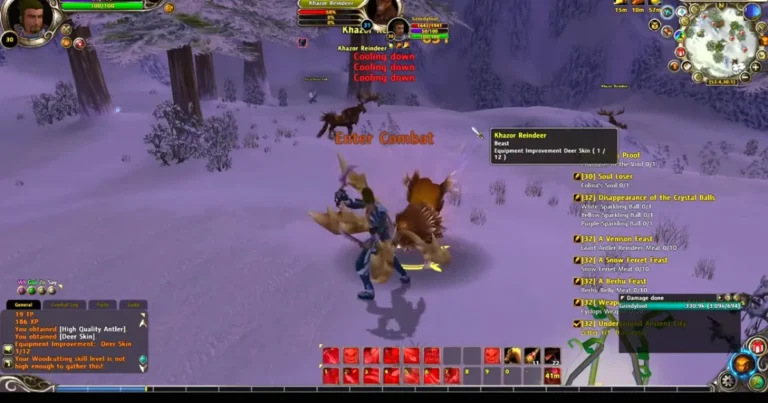
Runes of Magic on macOS – Compatibility & Setup Guide
Runes of Magic was made for Windows, so macOS does not have a native version of the game. Mac users need a compatibility layer to run the Windows client. CrossOver is one of the easier choices, while Wine gives experienced users more control over the Windows environment.
The results depend on the Mac model, macOS version, graphics hardware, and game client. Intel Macs and Apple Silicon Macs also handle Windows software differently. This guide focuses on compatibility, configuration, graphics, performance, and common problems rather than the installation process.
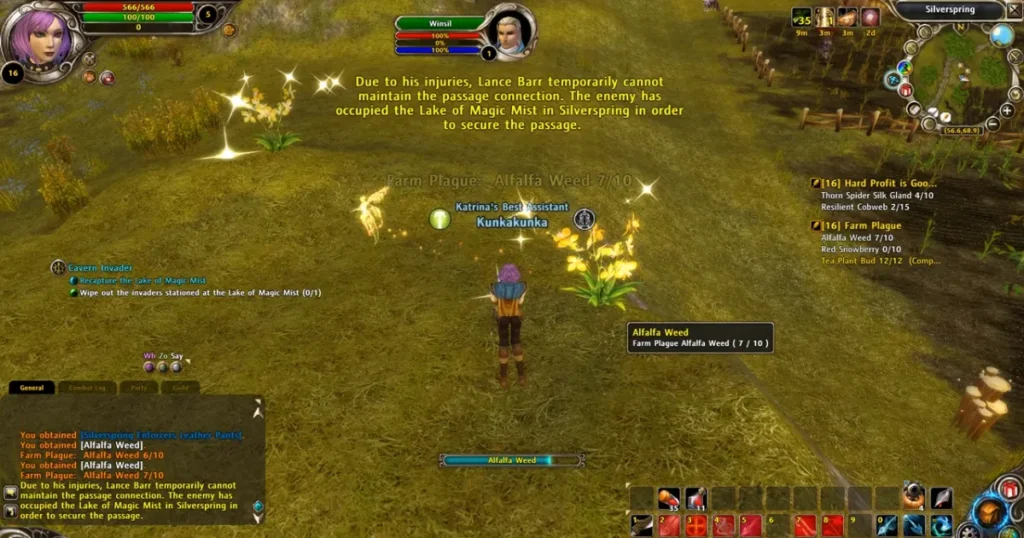
Can Runes of Magic Run on macOS?
Yes, the Windows version has been run on Mac through compatibility software such as Cross Over and Wine.
The official system requirements list Windows rather than macOS, so the game should not be treated as a native Mac application.
Older Cross Over testing also recorded the game running on macOS, although those results are not a guarantee for current macOS releases. Compatibility software and operating systems have changed since those tests were published.
Intel Mac vs Apple Silicon
The first thing to check is your Mac’s processor.
There are two main hardware groups:
- Intel Macs
- Apple Silicon Macs, including M-series chips
Intel Macs generally have a more direct relationship with older Windows software because of the x86 architecture used by the original PC client.
Apple Silicon Macs use ARM-based processors. Compatibility software therefore has additional work to do when handling older Windows applications.
This does not automatically mean that an Apple Silicon Mac will not run the game. It simply means that results depend more heavily on the compatibility software and its current support for the application.
CrossOver and Wine
CrossOver and Wine both provide ways to run Windows software on macOS, but they are aimed at slightly different users.
CrossOver
CrossOver provides a graphical interface for managing Windows applications. It uses separate environments called bottles and provides controls for compatibility settings, Windows versions, graphics options, and application behavior.
It is usually the easier choice for someone who does not want to manage Wine manually.
Wine
Wine provides the underlying compatibility layer and gives experienced users more control over the Windows environment.
A Wine-based setup is useful when you need to test a particular configuration or troubleshoot an issue that does not have an obvious graphical setting.
Neither option guarantees the same result on every Mac.
Keep the Game in a Separate Environment
Whether you use CrossOver or a Wine-based setup, keeping the game in its own environment is a good idea.
A separate environment prevents settings from another Windows application from interfering with the game.
It also makes troubleshooting much easier. If you change a graphics option, Windows component, or compatibility setting, you know that the change only affects this game.
Avoid copying DLL files or configuration files from unrelated Windows applications. A file that fixes one program could cause another program to stop working.
Graphics Compatibility on macOS
Graphics are one of the main areas to check when an older Windows game runs through a compatibility layer.
A game might start normally but show:
- Black screens
- Missing textures
- Flickering graphics
- Incorrect scaling
- Low frame rates
- Display glitches
If the game launches but graphics are not working correctly, check the graphics settings in CrossOver or Wine first.
Do not change several graphics options at the same time. Make one adjustment, start the game, and check whether anything improves.
Older compatibility reports are useful for understanding past behavior, but they should not be treated as current configuration guides. A Wine or CrossOver version that worked on an older macOS release might behave differently today.
Windowed Mode and Resolution
Windowed mode is worth testing when full screen causes problems.
Some compatibility issues appear only when an older Windows application tries to switch the display into full screen mode.
If the game behaves strangely in full screen:
- Switch to windowed mode.
- Test a lower resolution.
- Restart the game.
- Check whether the mouse and display behave normally.
- Return to full screen only after the basic setup is stable.
Do not lower the resolution simply because the game is running through compatibility software. If performance is already good, keeping a comfortable resolution usually gives a better experience.
Performance on Mac
The game is an older PC MMORPG, so modern Mac hardware has more than enough raw processing power for many situations. However, compatibility software adds another layer between the game and the operating system.
If performance feels poor, check:
- Resolution
- Graphics effects
- Shadows
- Background applications
- Compatibility configuration
- Mac thermal conditions
- Current graphics settings
Lower demanding visual effects first rather than changing everything at once.
On a laptop, also pay attention to heat and power usage. Performance can change when the system becomes hot or when running on battery power.
Common macOS Problems and Fixes
The Game Does Not Start
Check the compatibility environment first. Make sure the game is using the intended CrossOver bottle or Wine prefix.
If the problem appeared after a configuration change, undo that change and test again.
Black Screen
Try windowed mode and restart the game.
If the problem continues, check the graphics configuration and test another compatibility setting. A black screen does not necessarily mean that the game files are damaged.
Launcher Opens but the Game Does Not
The launcher and the actual game executable do not always behave the same way under a compatibility layer.
If the launcher works but the game closes, check the game’s executable, compatibility settings, graphics configuration, and available logs.
Mouse or Display Problems
Older Mac compatibility reports have included mouse and display issues with the game.
Windowed mode is a useful first test. If the problem remains, try another compatibility configuration instead of reinstalling the complete game.
Apple Silicon Compatibility Problems
Apple Silicon Macs use a different processor architecture from Intel Macs.
If the Windows client behaves differently on an M-series Mac, check the current compatibility software and its architecture support. Avoid downloading random replacement files from unofficial websites.
CrossOver vs Wine
For most Mac users, CrossOver is the simpler choice because its graphical interface makes compatibility settings easier to manage.
Wine is more suitable for users who are comfortable working with prefixes, runners, configuration files, and troubleshooting logs.
The choice also depends on the problem you are trying to solve. If the game already works under one method, there is little reason to switch simply for the sake of using another compatibility layer.
Keeping the Setup Stable
Once the game works properly, avoid unnecessary changes.
Keep a record of the working Wine or CrossOver configuration. If an update later causes a problem, you will have a reference point for troubleshooting.
When testing a new compatibility version, keep the previous working environment available instead of replacing it immediately.
This approach is especially useful with older games because compatibility can change after updates to macOS, CrossOver, Wine, graphics components, or the game client itself.
Final Thoughts
Running the Windows version on macOS depends on the compatibility layer rather than a native Mac release. CrossOver offers a simpler graphical setup, while Wine gives experienced users more control.
The most important factors are the Mac’s processor, macOS version, graphics system, game client, and compatibility configuration.
If problems appear, start with the basics: check the compatibility environment, test windowed mode, review graphics settings, and look at available logs. Change one setting at a time so you know which adjustment actually fixes the problem.